 58th Floor AI
Choose your two performers.
Add one clear photo to each slot. The first and second photos are supplied as the two performers for the video. Review both previews and confirm that you have permission to use them.
JPG, PNG or WebP · up to 15 MB eachAt 58th-floorai.com, turn two photos into a 15-second studio performance with two performers. The video includes the original show audio.
Make a video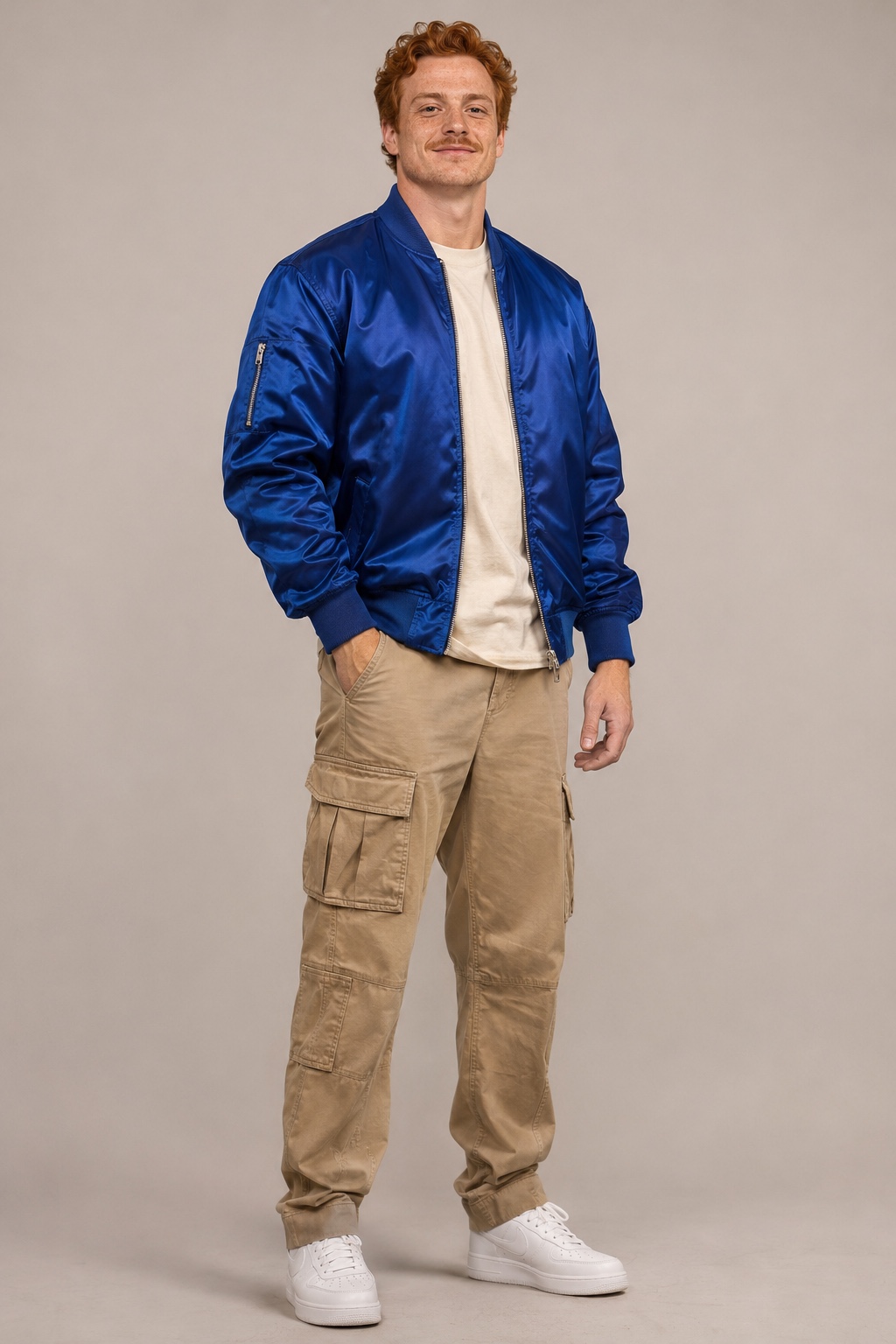
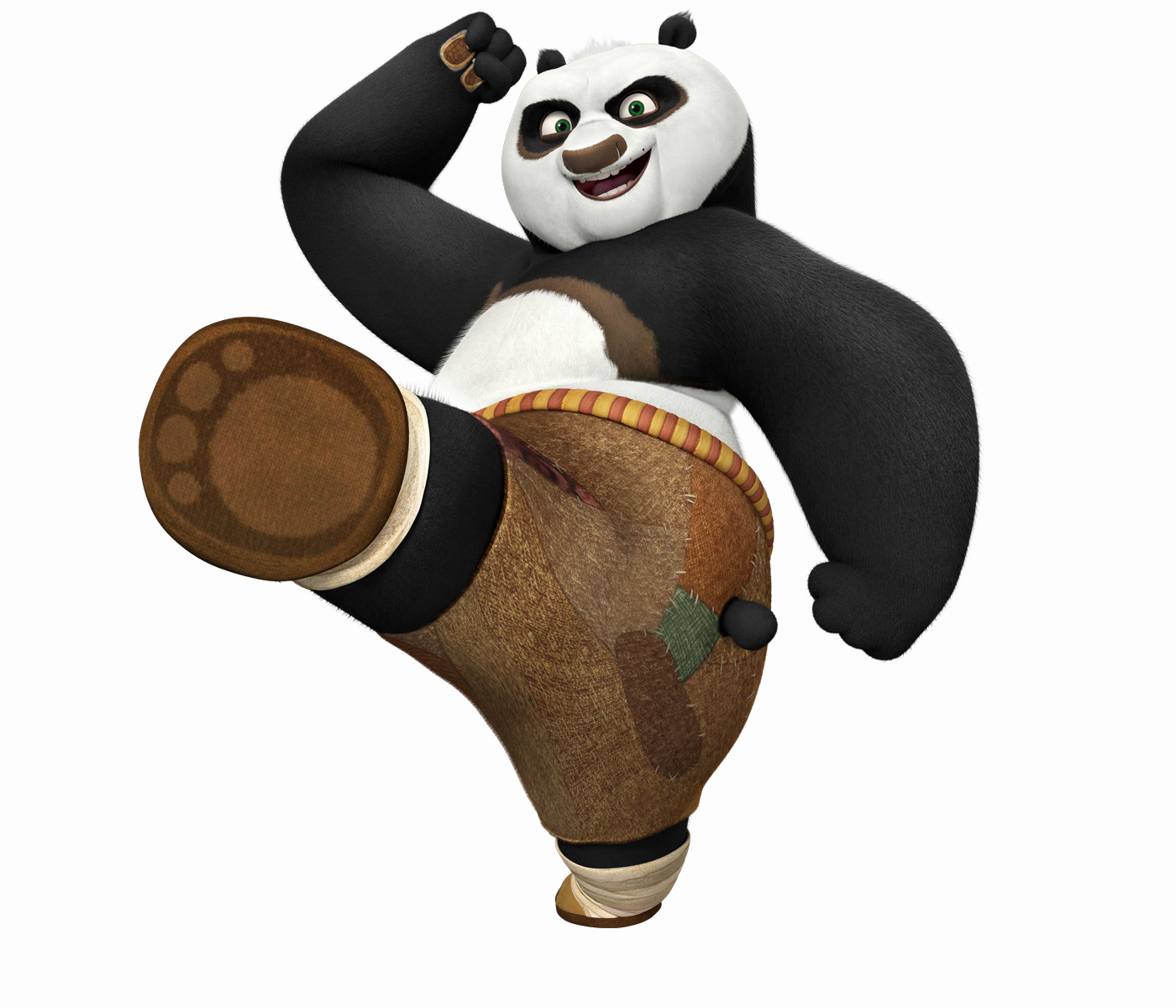
This 15-second example was generated from the two photos shown.
Add two photos to make your performance.
Add one clear photo to each slot. The first and second photos are supplied as the two performers for the video. Review both previews and confirm that you have permission to use them.
JPG, PNG or WebP · up to 15 MB eachSign in, check your credit balance and start the performance. One video uses 50 credits. Need more credits? Buy a one-time pack, then return to the studio to create.
50 credits · one 15-second performanceFollow the task status in the studio. When your video is ready, play or download it there, or find it later in My Videos while signed in to the same account.
Your completed videos, in one placeAlready started? Return to Make Video to follow your existing task. If it needs attention, use the recovery action shown there. My Videos holds your completed results.
Read the full walkthroughThese are the two photos used for the video shown here. Watch both performers together, then look back at the inputs to understand the transformation.
AI-generated example. This is a product demonstration, not a customer testimonial or a guarantee of your result.
Press play to watch. The player starts muted; turn the sound on to hear the performance.
Photos, credits and what happens next. For a question about your own order or task, contact support with its reference.
58th Floor AI makes a two-performer studio video inspired by the 58th Floor performance. You supply two photos, one for each performer, and the current workflow creates a 15-second video. You do not need to film your own performance or assemble the shots yourself.
Choose one clear, well-lit picture of each performer, with the face large enough to see. Avoid group pictures, heavy filters and anything covering the eyes or mouth. JPG, PNG and WebP files are accepted, up to 15 MB each. These are useful starting points, not a guarantee of a particular result. Read the photo guide.
Only use photos you have permission to use. Every real person pictured must be an adult aged 18 or over who agrees to appear in the video. You confirm this before starting each generation. A photo being available online does not mean you have permission to use it.
The current workflow pairs the generated picture with the performance audio. The example player starts muted; turn the sound on to hear it. This is a performance recreation, not a recording of the voices of the people in your photos.
The example shows one actual output from the two displayed photos. Every generation can differ: appearance, movement, cuts and mouth movements may change. Exact facial likeness, matching shots and word-for-word lip sync are not guaranteed. Watch the example to decide whether this style suits what you want to make. Explore the example.
One 15-second video uses 50 credits. Available credit packs and their prices are shown in the studio and on the pricing page. Buying credits adds them to your account; it does not automatically start a video. Return to Make Video, select your photos and submit when you are ready. See the current price.
The packs shown here are one-time purchases, not recurring subscriptions. Each new video uses 50 credits. Check your available balance before buying another pack, and review the payment details at checkout.
50 credits are reserved when the task starts and confirmed as spent after the finished video is saved. If the task clearly fails, the reservation is released. If the service cannot yet confirm what happened, the request may stay pending for review. Use the recovery option shown in the studio or contact support with the task ID; do not submit a new request just to check the old one.
Check the payment return page and use Refresh order status. Make sure you are signed in to the account used for the purchase. If the payment or balance still looks wrong, contact support with your order reference. Do not send card details, passwords or verification codes. Contact support.
Completed videos appear in My Videos for the account that created them. Open a video to play it, or use Download to save the file. The studio also shows the result of your current task. When a task finishes, its completed video appears in the list. Go to My Videos.
Choose your two performers and make a 15-second moment together.